
Exchange Guides
OKX 2FA Setup: Authenticator App, Anti-Phishing Code & Account Recovery (2026)
Secure an OKX account with an authenticator app, anti-phishing code and recovery plan before depositing or trading.
Disclosure: This guide is for account-security education only. Security settings and recovery checks can vary by region, app version and account status. Never share your password, verification code, authenticator secret or recovery phrase.
Two-factor authentication (2FA) adds another verification step when you sign in or perform sensitive actions on OKX. It cannot remove every risk, but it makes a stolen password less useful. Set it up before depositing funds, and prepare a recovery path before you lose access to a phone or authenticator app.
What to secure first
Use a dedicated email address and a unique password. Then review the security methods available in your OKX account:
- Email verification.
- Phone verification.
- An authenticator app.
- Anti-phishing code.
- Device and login alerts.
- Withdrawal-security or address-allowlist settings, where available.
The exact names and order can change. Open the Security or Security Center area inside the official OKX app or website.
Set up an authenticator app
Step 1: Open Security settings
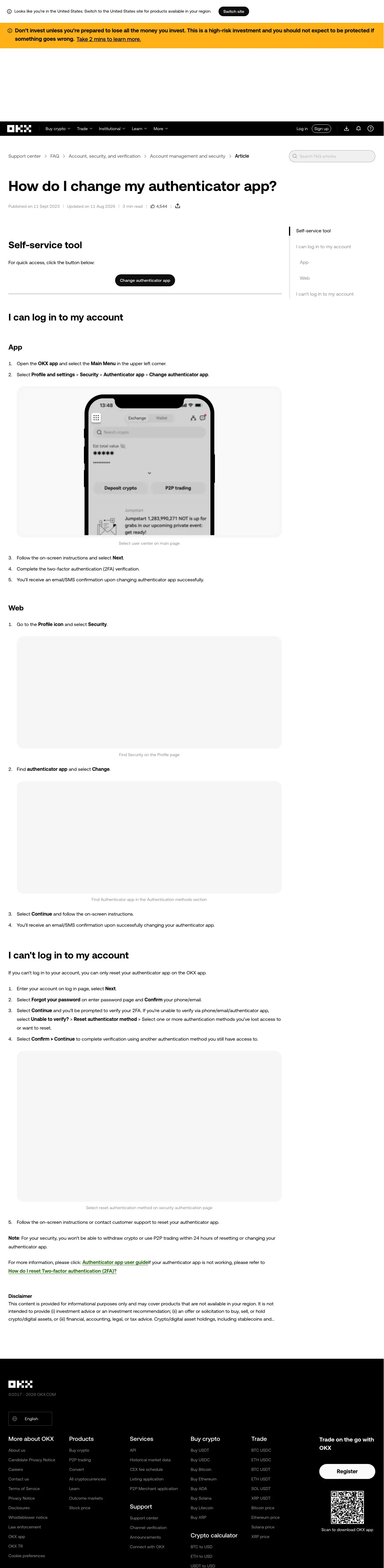
In the OKX app, open the main menu, then go to Profile and settings > Security. On the web, open your profile and select Security.
If your labels differ, use the current OKX help flow rather than installing an unofficial support app.
Step 2: Choose Authenticator app
Select Authenticator app and follow the on-screen setup. OKX may ask you to confirm existing email, phone or password verification before enabling the new method.
Use an authenticator app you control. Do not send the setup QR code or secret key to another person.
Step 3: Save recovery information safely
During setup, the authenticator app may show a QR code or setup key. Store the recovery information offline in a secure place. Do not save it in a public note, screenshot folder or shared cloud account.
If you change phones, you may need this information or an account-recovery process to restore access.
Step 4: Verify the code
Enter the current one-time code shown by the authenticator app. Make sure the phone’s time is set automatically; a clock that is out of sync can cause valid codes to fail.
After setup, perform a normal sign-in check before depositing funds.
Add an anti-phishing code
If the anti-phishing code feature is available in your region:
- Open OKX Security settings.
- Find Anti-phishing code.
- Choose a code that is easy for you to recognize but difficult for others to guess.
- Confirm and save the setting.
- Check future OKX emails for the code.
If an email claiming to be from OKX does not display your expected anti-phishing code, do not click its links. Open the official OKX domain manually and check your account.
Protect the account beyond 2FA
- Use a unique password and a password manager.
- Keep your email and phone number secure.
- Remove unfamiliar devices from Device Management.
- Do not approve a login you did not start.
- Use an address allowlist for withdrawals where it fits your workflow.
- Never disclose a one-time code to support.
- Keep your operating system, browser and OKX app updated.
If the authenticator app stops working
First check that the phone time is automatic and that you are entering the current code. If you can still sign in, use Security settings to change the authenticator app.
If you cannot complete verification, use the official OKX recovery path from the login screen or app. You may need identity checks or facial verification. Do not pay a stranger who promises to reset 2FA.
After changing or resetting an authenticator method, OKX may temporarily restrict withdrawals or P2P activity for security. Check the exact notice shown in your account.
What to do after losing your phone
- Secure the phone number and email linked to OKX.
- Try the official account-recovery flow.
- Reset the authenticator method only through OKX.
- Review devices and API access after regaining entry.
- Change your password if the phone was lost unlocked.
- Check withdrawal and login history for activity you do not recognize.
If you suspect unauthorized access, stop trading and contact OKX through its official support center.
FAQ
Is SMS 2FA enough? It is one possible method, but your account should use the strongest security options available to you. An authenticator app can provide an additional layer without relying only on text messages.
Where should I store the authenticator backup? Store it offline in a private, protected place. Anyone who obtains the setup secret may be able to generate codes.
Can I disable all 2FA? Do not assume that every security method can be disabled. Follow the current options shown in OKX Security settings.
Will changing 2FA affect withdrawals? It may trigger a temporary security restriction. Check the current OKX notice before planning a withdrawal.
What should I do if an email looks fake? Do not open its links or attachments. Visit okx.com manually and use the official support or channel-verification tools.
Educational content only. Not financial advice. Verify current security paths in the official OKX app and help center. Last reviewed: August 2026.